
Choose a comparison that fits the files
Suppose a colleague hands you a folder called “finals” after a shoot. It contains an MP4 you recognize, a smaller file with an unfamiliar name and a twenty-second highlight. Before bringing everything into the archive, decide what you want to establish about each file. The same scene, the same full-length picture edit and the same file on disk are three different findings. Each leads to a different action.
| Question | Method | What to verify |
|---|---|---|
| Are the files byte-for-byte copies? | Compare file hashes. | A rename preserves the file bytes. A new encode generally changes them. |
| Is the full picture edit present at another resolution? | Review a full-video visual match. | Open both paths and compare their tracks, running time and picture quality. |
| Does the highlight occur inside the original? | Use section search with the trimmed clip. | Play the suggested passage in the longer source and check the cut boundaries. |
| Does a screenshot identify the source? | Search the indexed library with that frame. | Preview the candidate scene around the suggested time. A still shows little about the rest of the file. |
Put both versions within reach of the index
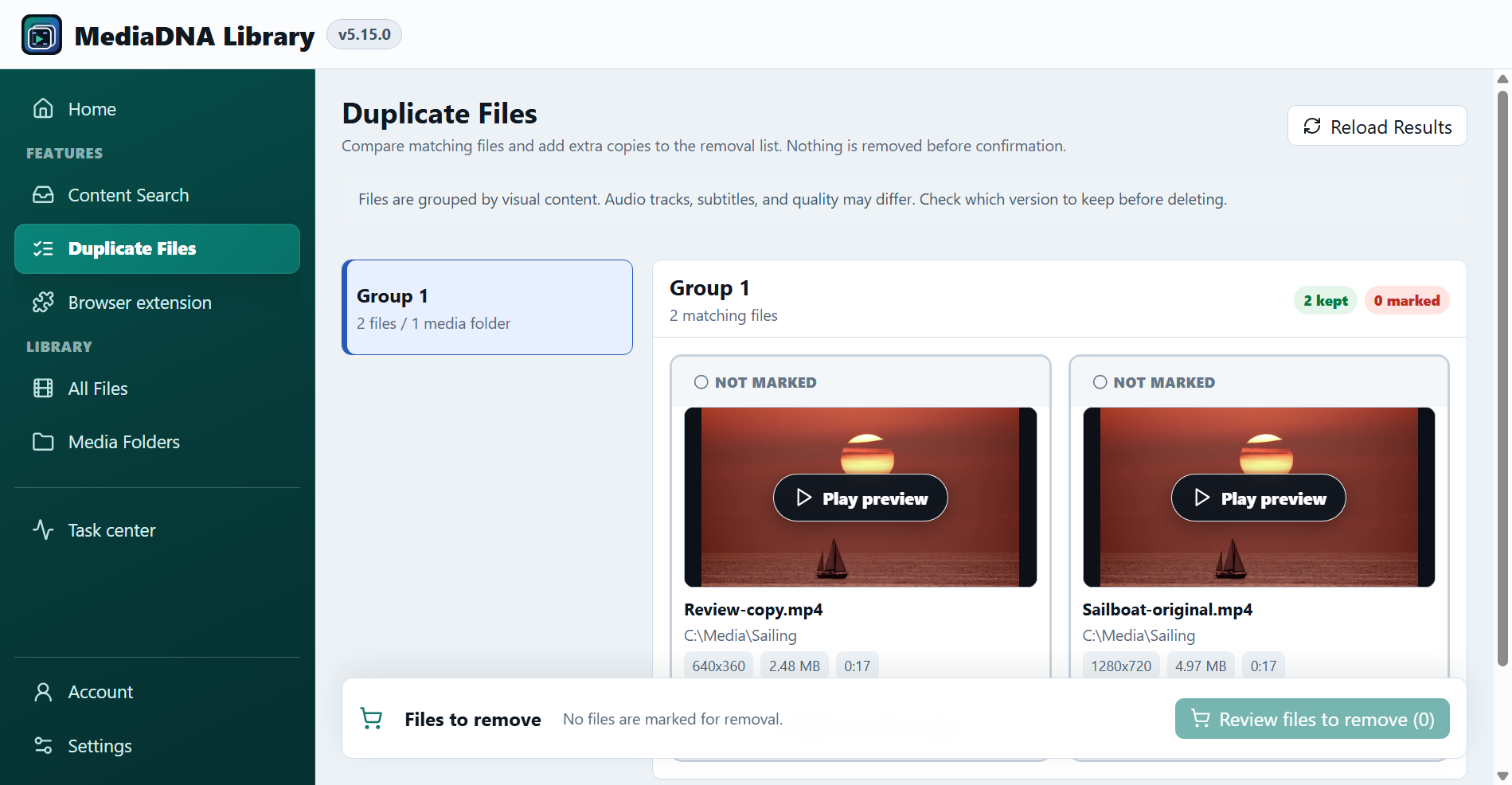
Connect and mount the disks containing the source and the delivery. Open a known file on each disk from your file manager. In MediaDNA Local Mode, add the relevant folders and allow indexing to finish. Open Duplicate Files and look at the paths in each group. If the source is on a NAS, the workstation running Local Mode needs access to the mounted share. A laptop that remembers the name of a share can still be disconnected from it.
You can also check one newly delivered video before adding its folder. Select it in Content Search and review the whole-video results. This is useful for a downloads folder full of unrelated material. The selected video acts as a query, and you can inspect matches against the library you already have. Add the destination folder later if you decide to keep that delivery in the library.
Follow a real example with a silent, resized export
In a MediaDNA engine test on Windows, the initial folder contained an indexed video called A.mp4. The test moved A.mp4 to a second folder, refreshed the first folder and created a file called renamed-small.mp4 there. The new file was encoded with MPEG-4 video at half the width and half the height of the source. Its audio was removed. Both the filename and the file size differed from the original.
With only the first folder indexed, the result contained one current file, no current duplicate group and one match in the file history. That historical match pointed to the original’s former location. After the second folder was indexed, the moved original and the smaller export appeared together in one group containing two files. Adding a byte-for-byte copy of the moved original brought the same group to three current files.
If you see the first outcome in your own library, follow the paths before changing any files. A historical location tells you where a copy was seen. Open the current master from its new location and refresh the folder that contains it. You can then compare two accessible files and make a decision with the original in front of you.
Review what the export changed
Play matching points near the beginning, middle and end. Inspect a scene with movement or fine detail to see what the lower resolution and compression did to the image. Then listen. The silent export in the example is easy to identify once you play it, but a stereo review mix and a multichannel master can sound similar through a laptop speaker. Look at each file’s track list as well.
Record the intended use of each version. A smaller review copy may be the file a client has already approved, while a high-resolution version may contain the original audio required for another edit. If a project is still active, open it and check which path it references before moving a file. For an archive with intentional backups, a complete visual match across two drives can be exactly the result you want.
Frequently asked questions
Does changing MP4 to MKV tell me anything about the pictures?
The extension identifies the container. An MKV can carry the same video stream as an MP4 or a different encode of the same edit. Use the pictures to identify a visual relationship, then inspect the streams. FFprobe’s stream information can show codec, frame dimensions and audio or subtitle tracks. That is helpful when one version has a commentary track or captions you would lose by keeping only the other.
What if just the opening credits or a trailer match?
Use the shorter file as a video query and choose “Continue with section search” after the whole-file check when that option appears. Play through the returned range. Two episodes can share opening credits while containing different stories. A trailer can also contain separate shots from the same film. Preserve each edit when the overlap accounts for only part of its running time.
Why might I miss a version with a watermark, crop or replacement opening?
Check the basics first. Are both folders indexed, are the source files readable and did the scan finish successfully? Next compare the shape and duration of the two edits. A heavy crop or persistent graphic can alter much of the image, and a new opening changes the sequence. Try a distinctive frame or an unaltered excerpt to find the source, then inspect both complete edits before labeling them as copies.
Should I keep the version with the largest dimensions?
Check the master’s origin and examine a detailed shot at its actual display size. Upscaling can increase the dimensions without restoring detail. An editing proxy may also be smaller by design. Keep the version required for delivery and the material you need to make future edits. If you plan to remove a redundant copy, verify the keeper opens from its current path and review the confirmation for the selected file.